Installing FModel
FModel is another essential tool for modding, as it allows you to very easily view and browse the structure, layout and content of files and assets within a UE game, such as Subnautica 2.
Installation and setup of FModel is pretty straight-forward:
- Unzip the file and copy
FModel.exeto the “FModel” folder in the modding folder you created earlier. - Run the exe file.
- If you are prompted to “Download or update .NET”, click “Download it now”.
- This will download an executable to your default downloads folder, called something like
windowsdesktop-runtime-8.0.27-win-x64.exe. - Run this and click “Install” and close the installer once it’s done.
- Close the FModel window and launch the EXE again and you should see a “Directory Selector” window appear.
- Assuming FModel doesn’t yet know about Subnautica 2, under “Add undetected game”, click the 2 arrows to expand the window.
- Enter the name, “Subnautica2”
- Click the “…” button on the right of Directory and select your Subnautica 2 installation folder:
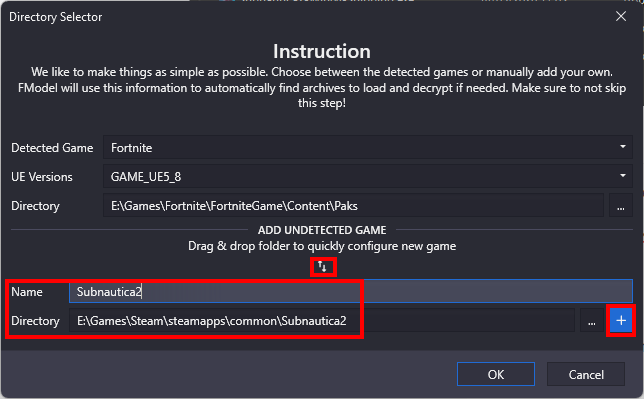
- Click the “+” button to add the new game.
- FModel should detect the Unreal Engine version, in this case “GAME_UE5_6” :
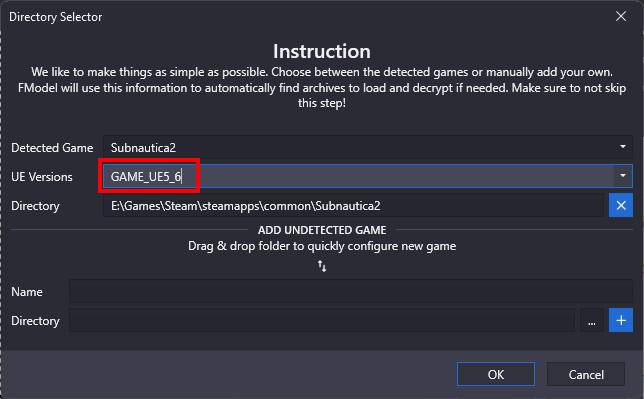
- Now click “OK”.
- You should see a list of Subnautica 2 files under Game Archives, all being well.
- Click the Settings menu item and enable “Local Mapping File (drag & drop)”.
- You can either drag and drop the “.usmap” file created earlier, or click the three dots button and locate it. Remember, it was created by UE4SS as
Subnautica2\Subnautica2\Binaries\Win64\ue4ss\Subnautica2-x.y.z-nnnnn.usmap. - Click OK.
- In the top left of the FModel main window, change the “Loading mode” dropdown to “All” and click “Load”.
- Doing so will allow you to browse the contents of both the .pak and .utoc files together, which is handy if you’re looking for localisation files, for example, that are still packed in .pak containers.
-
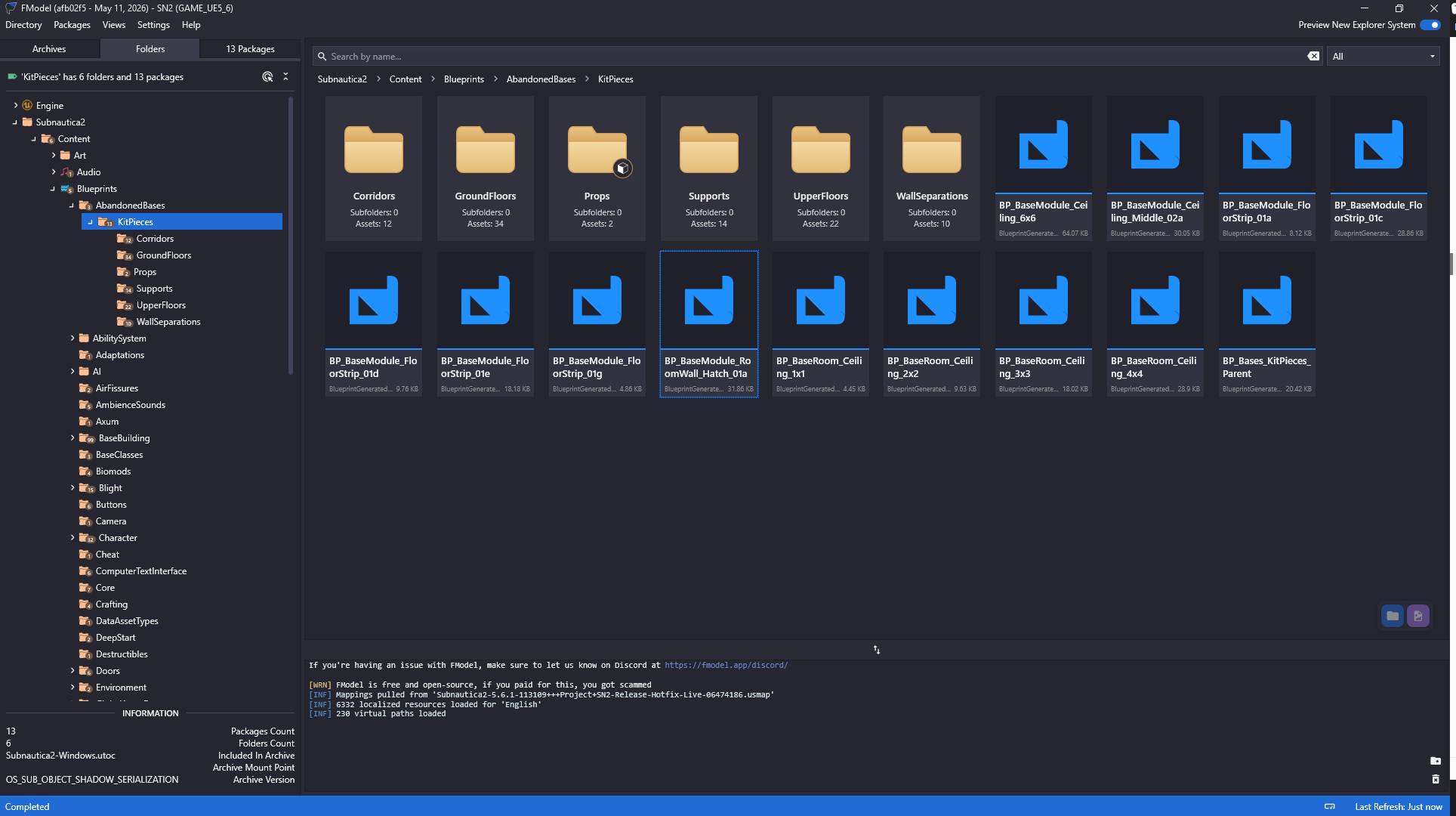
You can test everything is working by expanding “Subnautica2 > Content > Blueprints” until you see some assets. Doubling clicking a Blueprint asset should display a JSON file describing the asset contents:
- To get the most out of FModel, you should go into Settings and enable these options:
- Serialize Script Bytecode
- Decompile Blueprint to Pseudo C++
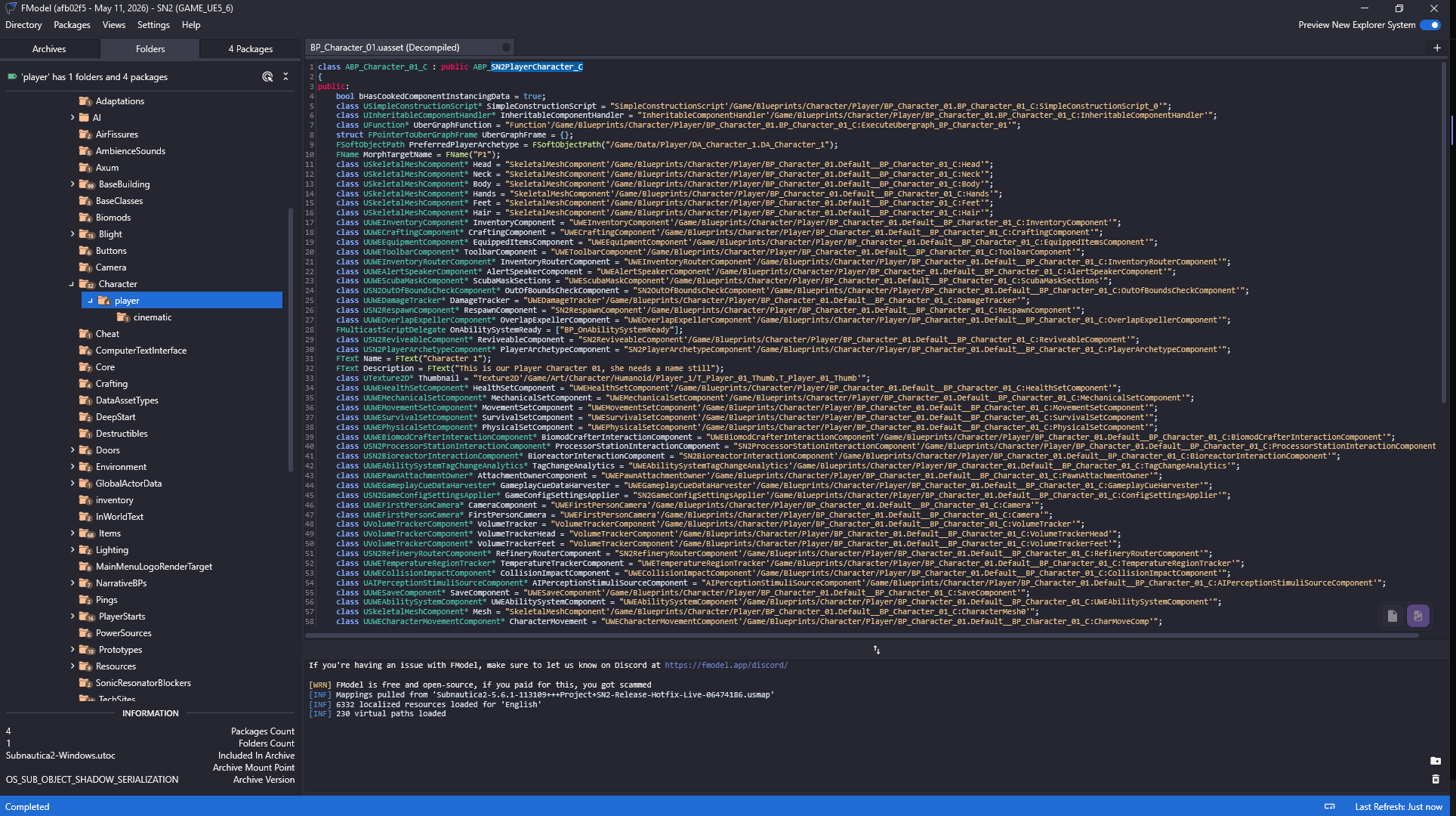
- These options enable a right click context menu for Blueprints, “Decompile Blueprint”, that will generate a kind of pseudo-C++ representation of the Blueprint that can help you understand the underlying game logic: